

Managing dozens of rental items one by one can be time-consuming. That’s why Local Rentz offers a Bulk Upload feature—so you can list your gear faster, all at once. Whether you’re listing kayaks, paddleboards, bikes, or beach equipment, etc. here’s exactly how to do it.
Step 1: Download the CSV Template
- Click “Download CSV Template” in your dashboard.
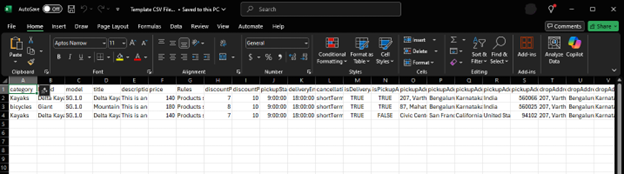
- This file shows the exact format for bulk listing.
- You can edit the downloaded file directly or create a new CSV file that follows the same column order and structure.
Step 2: Upload Images & Copy Image Paths
- First, upload your product images into your image library.
- After uploading, copy each image’s path (URL).
- Paste these paths into the CSV under image_1, image_2, etc.
- Tip: Include at least 4 images per product—shops with more images tend to get more bookings.


Step 3: Fill in Product Details
- Use the CSV to fill in your rental details.
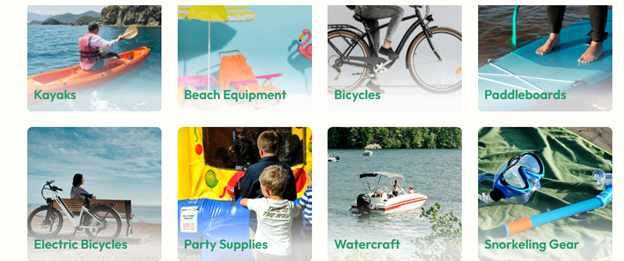
- Double-check you’ve selected a valid category:
- Choosing any other category will result in an upload error.
- (Categories subject to change)
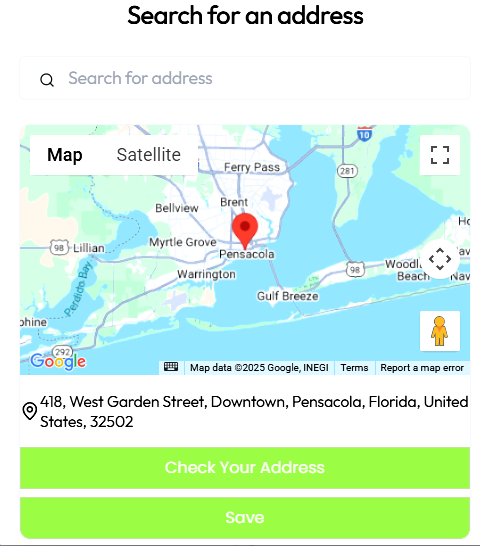
Step 4: Ensure Address Validity
- Your pickup and drop-off addresses must exist on Google Maps.
- If the address isn’t recognized, customers won’t be able to find your shop.
Step 5: Maintain Column Order
- Do not rename or move columns in the CSV.
- Shifting or deleting columns can cause the upload to fail.
Step 6: Upload Your CSV File
- Once your CSV is complete, return to the dashboard and click Upload.
- The system will process your listings, and your rentals will appear live in the app once approved.
Pro Tips to Make Bulk Upload Even Easier
- Keep a master CSV file saved on your computer for quick edits later.
- Use consistent naming conventions for images (e.g., kayak_red_01.jpg).
- Start small: try 3–5 products first, then move on to larger batches once you’re comfortable.
The Bulk Upload feature was built to save you time and get your gear in front of renters faster. Spend less time on data entry and more time serving customers.
👉 Vendors: Ready to try it? Log in now and bulk upload your shop’s rentals today.